 Mortise Apps
Complete user guide
Last updated 2026-09-28
LinkLens draws the chains of one Jira link type (for example blocks / is blocked by) as an interactive graph: across a whole project, or around a single issue. This guide covers every control.
1. Where LinkLens appears
| Place | Name | What it shows |
|---|---|---|
| Project sidebar | Dependencies | Every chain of the chosen link type across the project (or any JQL scope) |
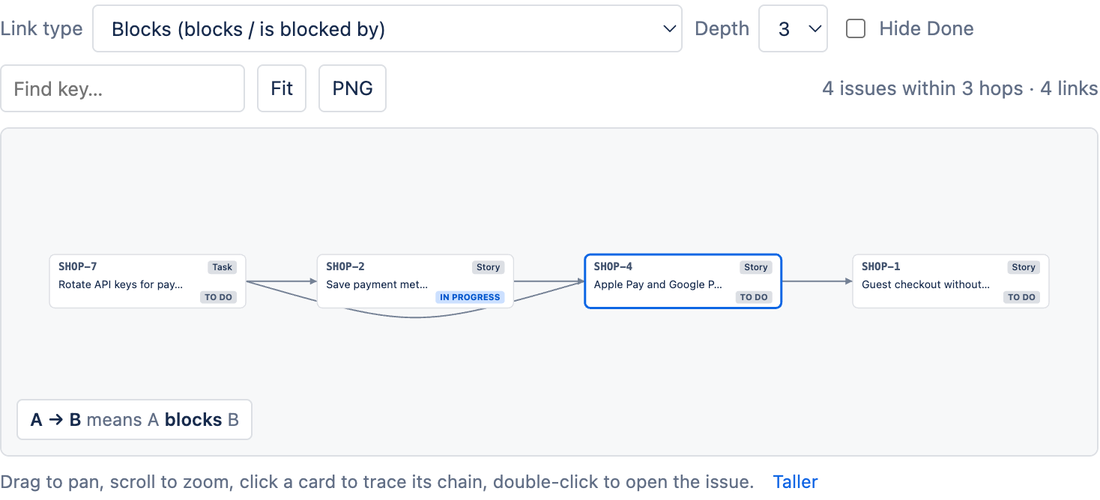
| Issue view | Dependency chain | The chain around the current issue, 1 to 5 hops in each direction |
Both views share the same toolbar and canvas, so what you learn in one applies to the other.
2. The toolbar
| Control | Where | What it does |
|---|---|---|
| Link type | Both | Pick one link type, shown as Name (outward / inward), for example Blocks (blocks / is blocked by). One pick covers both directions. Remembered per project. |
| Depth | Issue panel | How many hops to follow from the current issue in each direction: 1 to 5, default 3. |
| JQL scope + Apply | Project page | Which issues to include. Defaults to project = KEY. Type any JQL and select Apply or press Enter. Remembered per project. |
| Hide Done | Both | Removes issues in the Done status category and their links. Remembered per project. |
| Find key… | Both | Type an issue key (or just the number) and press Enter to centre the graph on it. |
| Fit | Both | Zooms and pans so the whole graph is visible. Keyboard: 0. |
| PNG | Both | Downloads the graph as an image with a white background and a legend. |
| Stats text | Both | Issues in scope, how many are in chains, link count, issues outside the scope, and whether the 2,000-issue cap was hit. |
3. Reading the graph
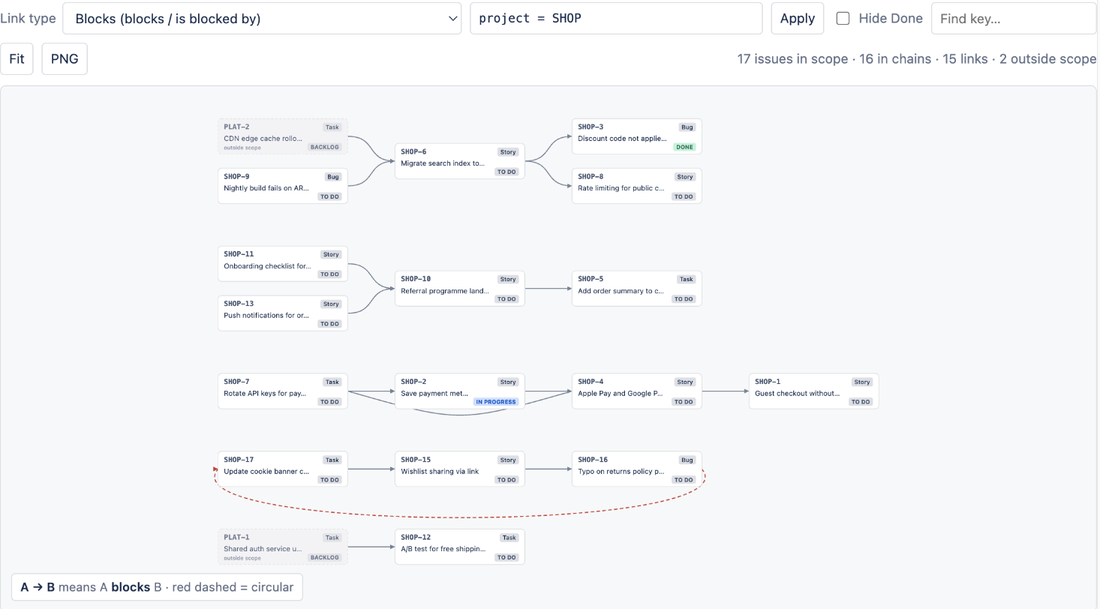
- Cards are issues: key, issue type chip, summary (shortened) and a status lozenge coloured by status category (grey to do, blue in progress, green done).
- Arrows run from the outward end of the link to the inward end. For Blocks,
A → Bmeans A blocks B: A must finish first, B is waiting. The legend under the canvas restates this for whichever type you picked. - Columns: every card sits one column to the right of its furthest blocker, so a chain F1 → F2 → F3 → F4 reads left to right. Independent chains are stacked vertically, largest first.
- Dimmed dashed cards are issues outside the current scope (another project, or excluded by your JQL) that are linked to an issue inside it. They are shown so cross-project blockers stay visible, but they are not expanded further.
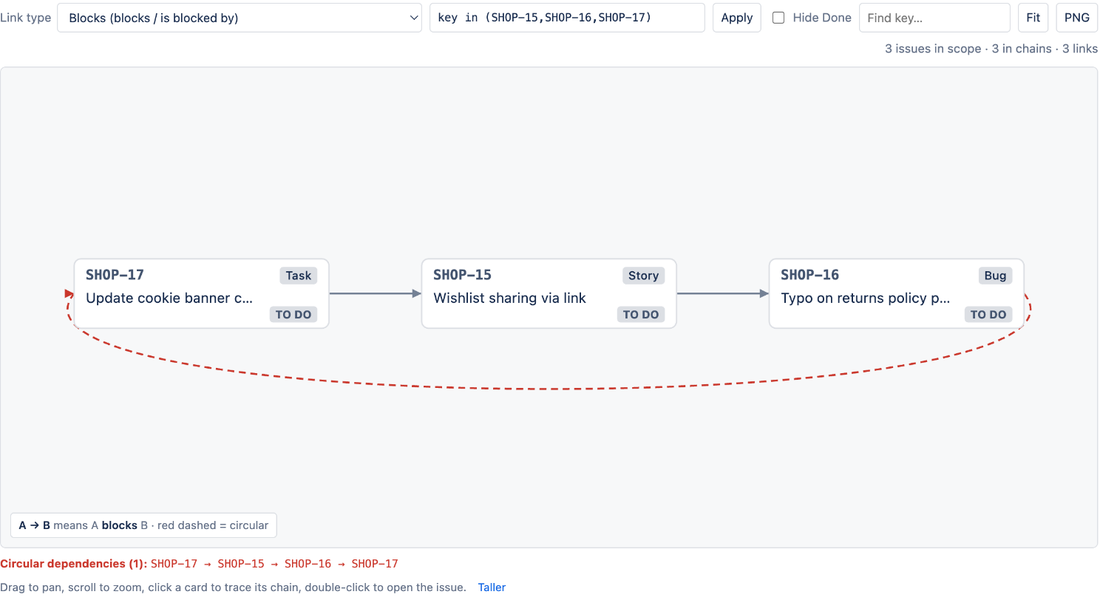
- Red dashed arrows close a circular dependency. See Circular dependencies.
4. Interacting
- Pan: drag anywhere on the canvas. Zoom: mouse wheel or pinch. Keyboard
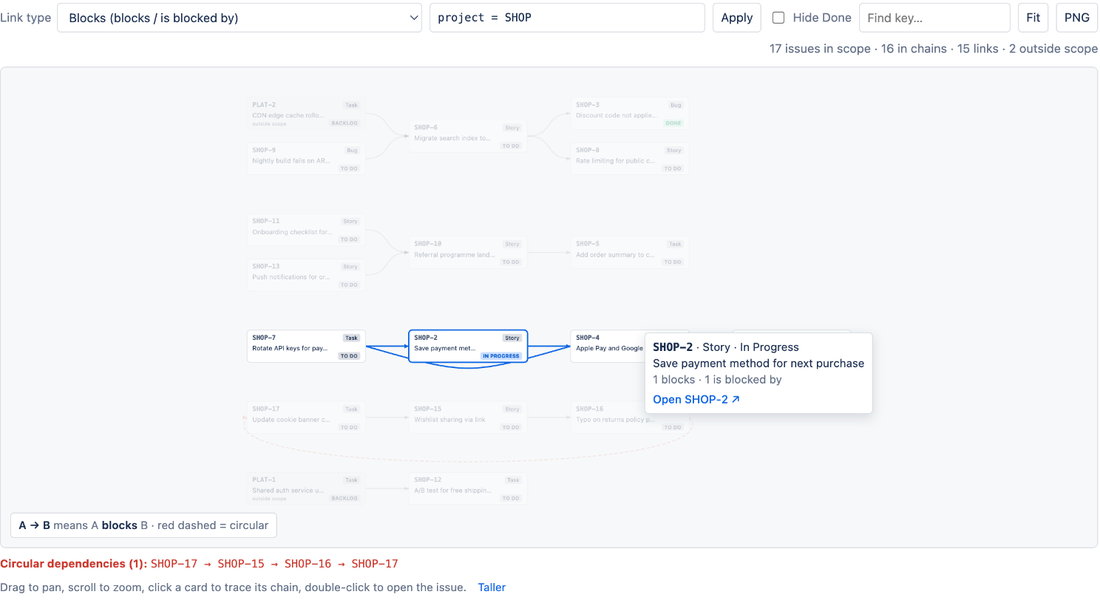
+and-zoom,0fits. - Hover a card: a tooltip shows the key, type, status, full summary and how many links of the chosen type go out and in. The card's entire upstream and downstream chain stays bright and everything else fades.
- Click a card to open the issue in a new browser tab.
- Taller (below the canvas) makes the canvas higher in steps; select it again to reset.
5. Project Dependencies page
See Project Dependencies page for scope tips, the 2,000-issue cap and how the "in chains" count works.
6. Issue Dependency chain panel
See Issue Dependency chain panel for depth, the 300-issue limit and the Open full project view link.
7. Choosing a link type
See Link types and direction. Short version: pick the type whose outward name describes "must finish first", and LinkLens draws the arrows the right way round.
8. Circular dependencies
LinkLens detects loops (A blocks B, B blocks A, or longer), draws the closing link in red and lists every loop under the canvas. See Circular dependencies.
9. Export
PNG downloads the whole graph, not just the visible part, at double resolution with a legend line. See Export and sharing.
10. Settings that are remembered
Per project: link type, JQL scope (project page only) and Hide Done. They are shared by everyone who opens that project's Dependencies page, and stored in Atlassian's Forge storage inside your site. Nothing else is stored.
11. Roadmap
- Create and delete links by dragging between cards.
- Parent/child (epic to story, story to sub-task) as a second, grey edge kind.
- Dashboard gadget for a saved filter.
- Colour cards by team or sprint.
- SVG export and copy-to-clipboard.
- Critical path highlight and open-blocker counts.
Feature requests: Support.
Was this page helpful? Email support@mortiseapps.com.