 Mortise Apps
Getting started
Last updated 2026-09-28
Install
- Open the LinkLens page on the Atlassian Marketplace and select Get it now (or Try it free on sites above 10 users).
- Choose your Jira Cloud site. Jira admin rights are required to install.
- Installation takes under a minute. There is no configuration screen; LinkLens reads the link types your site already has.
Free for sites with up to 10 users. Above that, about USD 0.20 per user per month (roughly USD 10 for a 50-user site, USD 20 for 100 users, and USD 25-100 for larger sites) billed by Atlassian, 30-day free trial.
Prerequisites
- Jira Cloud (Software, Work Management or Service Management), team-managed or company-managed projects.
- At least one issue link type. Every Jira Cloud site ships with Blocks (blocks / is blocked by), Cloners, Duplicate and Relates. Admins can add more under Settings, Issues, Issue linking.
- Some issues linked with that type. If your project has no links yet, add one: open an issue, select Link work item, choose blocks, pick the issue it blocks.
First five minutes
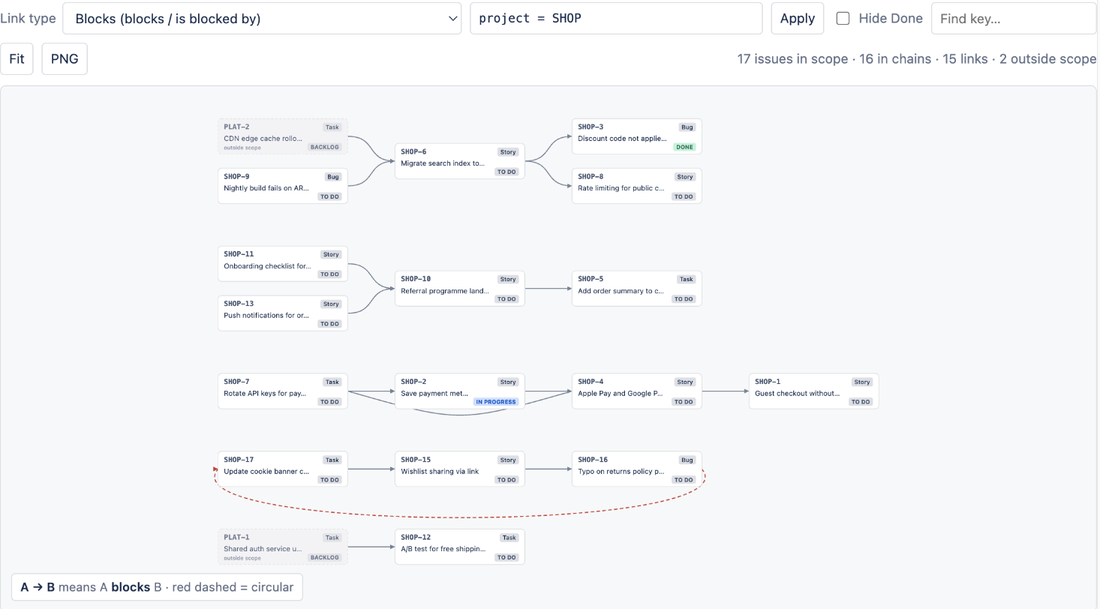
- Project view: open any project and select Dependencies in the project sidebar (under Apps if your sidebar is collapsed). The Link type menu defaults to Blocks (blocks / is blocked by). Every issue in the project that has a link of that type is drawn as a card; arrows point from the issue that must finish first to the issue that waits.
- Trace a chain: hover any card. Its full upstream and downstream chain stays bright, everything else fades. double-click a card to open the issue in a new tab.
- Issue view: open an issue that has a blocks link. The Dependency chain panel shows the same graph centred on that issue, three hops in each direction. Change Depth to see more or fewer hops.
- Narrow the scope: on the project page, edit the JQL box (for example
project = ABC AND fixVersion = "2.4") and select Apply. Tick Hide Done to drop finished work. - Share it: select PNG to download the current graph as an image with a legend.
What the app does not change
It never edits issues, links, fields or permissions. It reads data as the person viewing it, so everyone sees only what their Jira permissions already allow. The only thing it stores is each project's chosen link type, JQL scope and Hide Done setting.
Was this page helpful? Email support@mortiseapps.com.