 Mortise Apps
Project Dependencies page
Last updated 2026-09-28
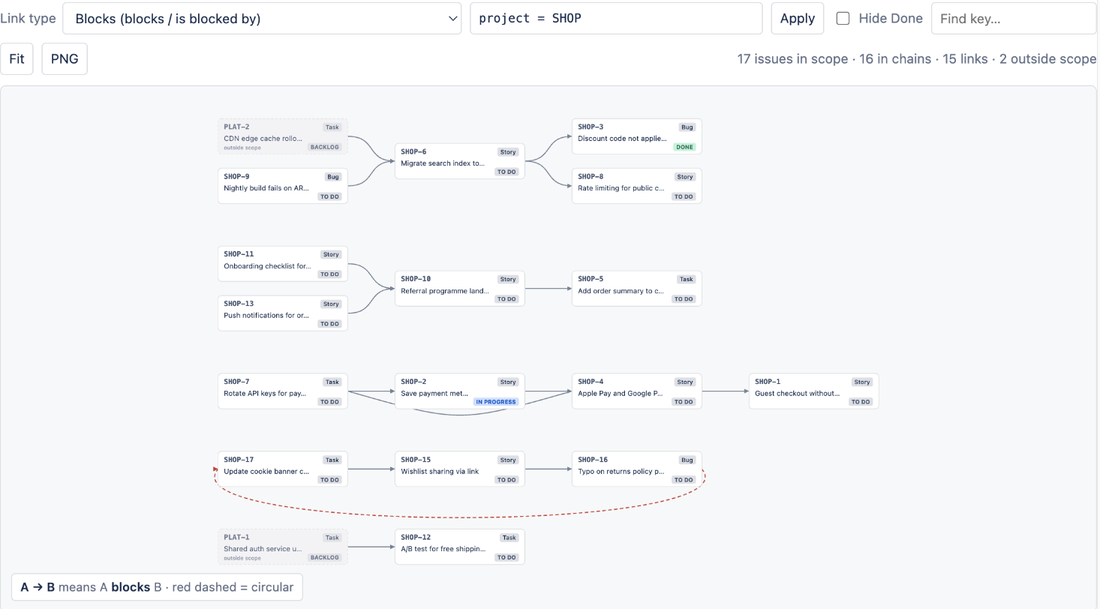
The Dependencies entry in the project sidebar draws every chain of one link type across the project.
Scope
- The default scope is
project = KEYfor the project you are in. - Edit the JQL scope box and select Apply (or press Enter) to narrow or widen it. Examples:
project = SHOP AND fixVersion = "Spring release"project in (SHOP, PAY) AND statusCategory != Donefilter = "PI 12 features"- Invalid JQL shows Jira's own error message in the canvas area. Test unfamiliar JQL in the issue navigator first.
- Hide Done removes issues whose status is in the Done category together with their links. It is a quick way to see only the work that still blocks something.
What is drawn
- Only issues that have at least one link of the chosen type are drawn. Issues with no such link are counted in the stats ("312 issues in scope · 41 in chains") but not shown, so the picture stays readable.
- Linked issues outside the scope appear as dimmed, dashed cards labelled outside scope so cross-project blockers are visible. They are not expanded further; widen the JQL to include their project if you need their chains too.
- Layout is left to right in the direction of the link: blockers on the left, blocked issues on the right. Separate chains are stacked vertically, biggest first.
Limits
- Up to 2,000 issues per graph. Above that the stats show capped at 2,000 and you should narrow the JQL.
- Results respect the viewer's permissions. Issues you cannot see are absent, including as external ends.
Tips
- Use Find key… to jump to an issue in a large graph, then hover it to see its whole chain.
- Save a JQL scope once; LinkLens remembers it for that project for everyone.
- For a planning meeting, select PNG and paste the image into Confluence or a slide.
Was this page helpful? Email support@mortiseapps.com.