 Mortise Apps
 JiraLinkLens for Jira
Why are my Jira dependencies not showing on the timeline?
If a dependency you linked in Jira does not show up as a line on the timeline, one of three rules from Atlassian's own help pages is usually the reason: the timeline only shows the Blocks link type, it only links work items from a single space, and it needs a Jira admin to have work item linking enabled. A "relates to" link, a custom "depends on" type, or a Blocks link to a work item in another space exists in Jira, but the timeline does not draw it.
Checked 1 Nov 2026: Atlassian Support's "Create or remove dependencies on your timeline" and "What are dependencies on the timeline?" pages (software spaces, Jira Cloud), both read 1 Nov 2026. We did not test this on a live site for this article; labels are quoted from those pages and may shift while Atlassian renames "issues" to "work items" and "projects" to "spaces".
The three rules, one by one
| Rule (Atlassian's wording) | What it means in practice | What to check |
|---|---|---|
| The timeline can only show work items with the Blocks link type | "relates to", "depends on", "is caused by" and other types never become lines | Open the work item and read the label in Linked work items: it should say blocks or is blocked by |
| The timeline can only link work items from a single space | A Blocks link from SHOP-12 to an item in another space does not appear as a line | Look at the key prefix of both work items |
| A Jira admin needs to enable work item linking | If linking is switched off for the site, there are no dependencies to draw | Settings > Work items > Work item linking shows whether it is on |
There is also a permission: the help page lists Link work items as the permission you need to create or remove dependencies. Without it you can still see existing lines but not add one.
Adding a dependency on the timeline
Atlassian describes two ways, both in software spaces:
- Drag: hover over the work item's schedule bar until dots appear on either side, then drag one dot onto the work item you want to link. The timeline picks the direction (blocks or is blocked by) from the order in which the two items are scheduled.
- Side panel: select a work item on the timeline to open its side panel, open the link menu, choose Link work item, pick blocks or is blocked by, then pick the other work item.
Either way, the link it creates is a normal Blocks link, so it also shows up on both work items and in JQL.
Reading and removing a dependency
- Details: select the line between two work items. The window that opens also lists dependencies between child work items, even when the parent row is collapsed.
- Red lines: when the dates of two dependent work items overlap, the line turns red, which Atlassian describes as a sign of possible delay or risk. It is a date check, not a status check: a red line does not mean the blocker is still open.
- Remove: select the line, then use the remove icon in the dependency window. This deletes the Blocks link itself, not only the line.
When the links you need are not Blocks, or cross spaces
The rules above are fine for one team planning one space. They stop helping when:
- teams use another link type for the same idea (our blocks vs is blocked by vs depends on post explains why one type is usually better), or
- the blocker lives in another team's space, which is exactly the dependency most worth seeing.
Native options first: you can switch your team to Blocks only, and find cross-space blockers with JQL such as issueLinkType = "is blocked by" (see JQL for work items blocked by open issues). Plans in Jira Premium has its own dependency views; our dependency map without Premium post covers what the Standard plan has instead.
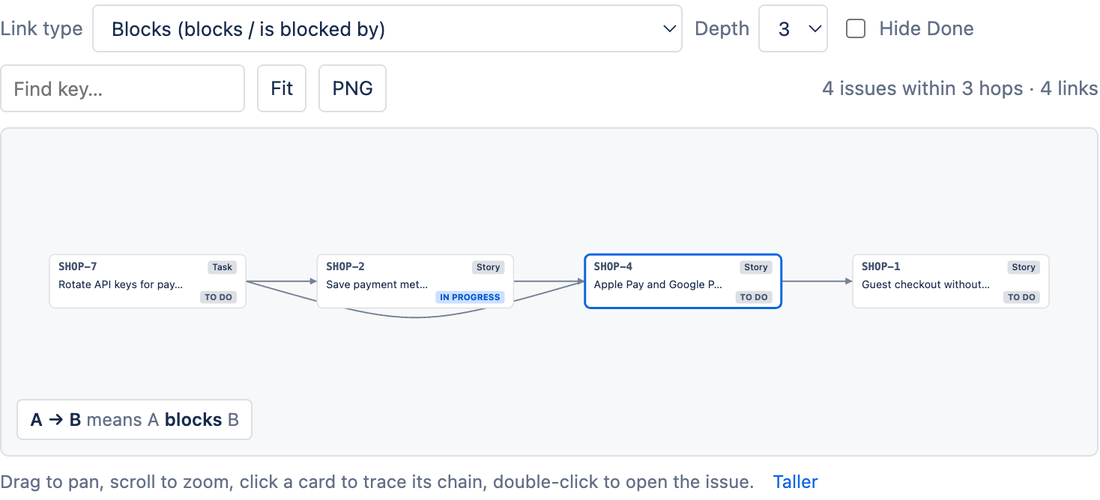
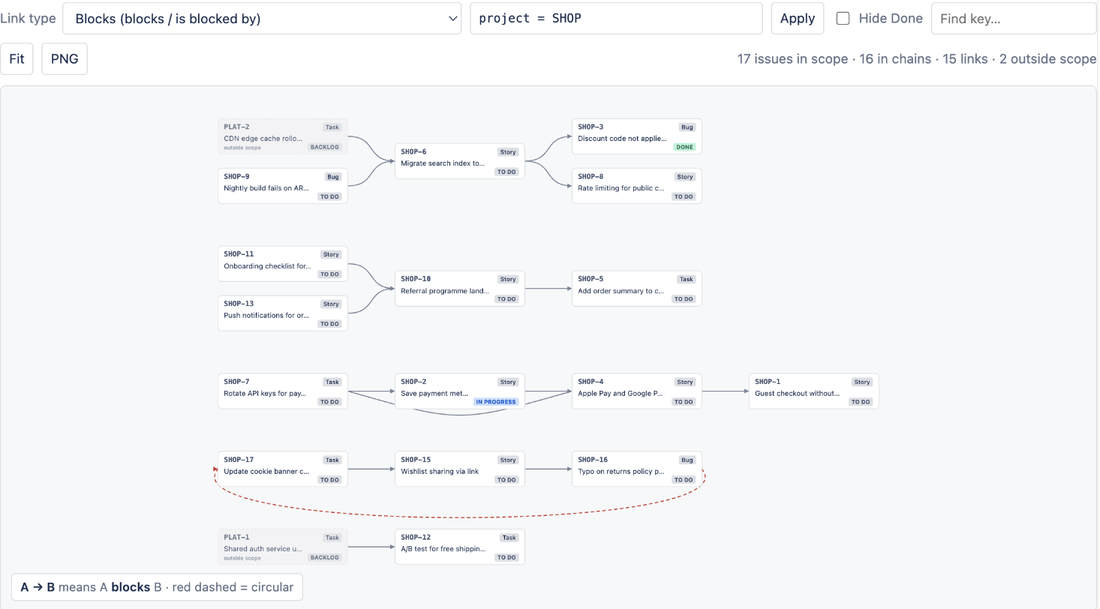
LinkLens for Jira, which we make, draws the links as a graph instead of a timeline: on a project's Dependencies page you pick a link type (Blocks is the default, and any link type on your site can be chosen) and every chain of that type across the project or a JQL scope is drawn as cards and arrows, with loops shown in red. It reads links and never changes them.
LinkLens is on the Atlassian Marketplace. Related reading: see the whole blocker chain and add a custom link type in Jira Cloud.
FAQ
Why does my "relates to" link not show on the Jira timeline?
Atlassian's page says the timeline can only show the Blocks link type. A "relates to" link stays on the work item but is never drawn as a line.
Can the Jira timeline show dependencies between projects (spaces)?
Not on the space timeline: Atlassian says it links work items from a single space. Cross-space Blocks links still exist on the work items and can be found with JQL.
Why is a dependency line red on the timeline?
Because the dates of the two work items overlap, which Atlassian flags as possible delay or risk. Fix the dates (or the order of work) and the line goes back to normal.
Does removing a dependency on the timeline delete the link?
Yes. The timeline's dependencies are the same Blocks links shown elsewhere in Jira, so removing one from the timeline removes the link.
Sources
- Create or remove dependencies on your timeline, Atlassian Support - Link work items permission, admin must enable linking, Blocks type only, single space, drag and side-panel steps, view and remove. Read 1 Nov 2026.
- What are dependencies on the timeline?, Atlassian Support - child dependencies under collapsed parents, red line on overlapping dates. Read 1 Nov 2026.